
Solution To Your Blogging And Computing Problems


Download Facebook Albums And Photos The Easiest And The Smartest Way
Being A Facebook User You Know The Problem Downloading Images From Facebook. Facebook Allows Users To Download Images but This Option Is Availble On Every Single Image Means If You Want To Download A Complete Album Of 200 Images You Have To Click 200 Images And Then Download Button Moreover You Want To Download 10 Albums Each Containing 200 Pics. Sounds Like You Had To Waste Lot Of Time. But Wait We Have Easy And Simple Way You Just Have To Click One Time And Press A Combination Of Keys And You're Done.You Just Need To Have GoOgle Chrome And Download Facebook Album's Photos. Both Are Free And Easy To Use.
 Firstly Download And Install Google Chrome And Then This Extension. Google Chrome Can Be Downloaded Over http://chrome.google.com And Once You're Donwloading And Installing Google Chrome Goto https://chrome.google.com/webstore/detail/blbmhonenddnnmbailokbccgmikhkpni. And Click On Install Once You Installed This You'll See Installed Icon Is Checked.
Now If You Visit Face Book Page You Can See A Pink Icon Along With Bookmard Star.
 Now Open The Album You Want To Download And Click on This Pink Button It'll Open A New Tab Generate An HTML file You Just Have To Press Ctrl+S And Save Page Pictures Will Automatically Get Saved Along With Page. Let's Say I Want To Download Father's Day Album From Facebook Official Page I Will Just Open It And Press Pink Button Let The Blue Bar To Be Filled Press Ctrl+ S And Save Page.


Now If You Visit Face Book Page You Can See A Pink Icon Along With Bookmard Star.


If You Like This Post Please Share To Others And let Us Know Your Problems Thanks.
How To Replace Navigation Text With Images | The Easy Way ( Examples Are Illustrated)
Unfortunately Blogger Comes With Limited Resources. You Have To Customize It According To Your Needs It Is Worth Knowing HTML , CSS and XML To Customize Blog But Those Who Don't Know These Laguages May Find It Difficult To Customize Blogs. But No Worries, Blog Tipster Is Here To Solve Here Problems. Today's Hack Is To Replace Your "NewerPosts", "Home" And "OlderPosts" Texts With Images. You blog will look more classy after these Replaced Navigation Text with Images
Step-1
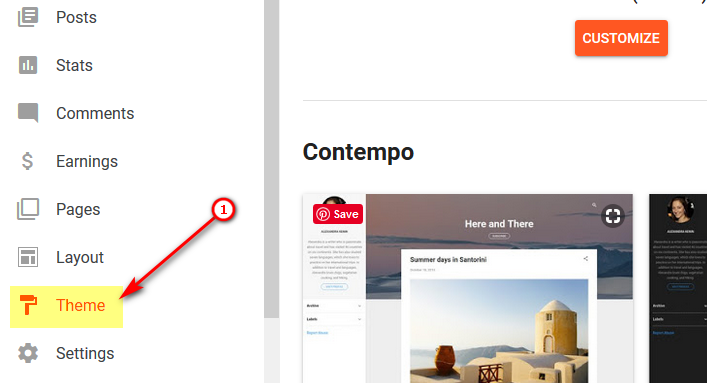
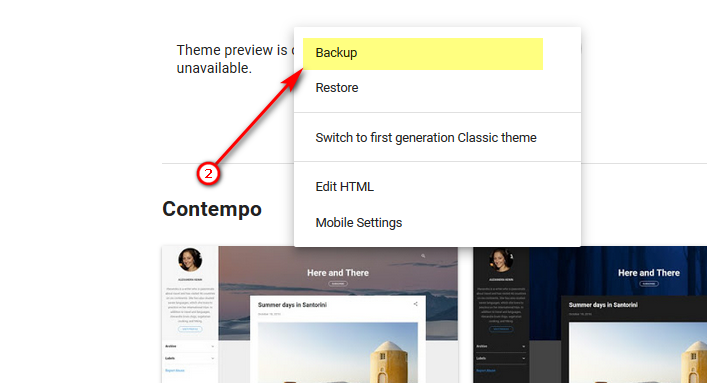
Login to your blog, on the left hand you will see options click on theme, now on the top right you will see backup restore, click on it and Download Full Template ( To Backup Your Blog If Anything Goes Wrong )
Step-1
Login to your blog, on the left hand you will see options click on theme, now on the top right you will see backup restore, click on it and Download Full Template ( To Backup Your Blog If Anything Goes Wrong )
Step-2
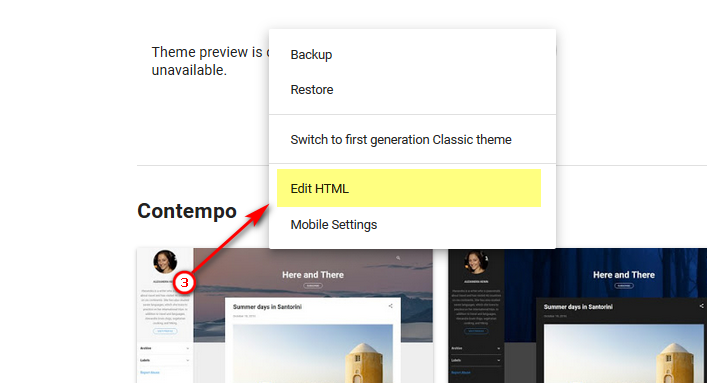
Now that you have backed up you Blogger Template. It is time to begin replacing Navigatiion Text Wth Images. Go to theme Where you backed up Select "Edit HTML" to enter in HTML mode. see Picture below to have clear idea.
You will Enter in HTML Mode, click on the code anywhere and press Ctrl + F And Find The following Piece Of Code
<data:olderPageTitle/>

<img src ="https://image.flaticon.com/icons/svg/391/391112.svg" alt = "OlderPosts" width = "50px" height = "50px" /> 
You are done with older posts Nevigation now Find
<data:newerPageTitle/>
And Replace It With
<img src ="https://image.flaticon.com/icons/svg/391/391297.svg" alt = "NewerPosts" width = "50px" height = "50px" />
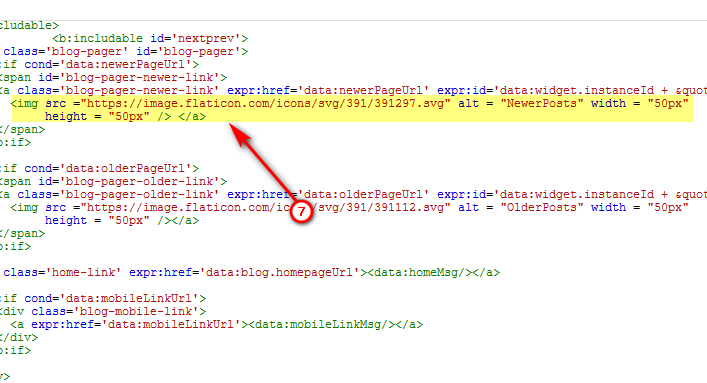
now you have to replace Home Page Link Which Is Kinda Tricky, You Need To Place This Code Two Times,
Now Find

And Then Replace It With
<data:homeMsg/>And Then Replace It With
<img src ="https://image.flaticon.com/icons/svg/609/609803.svg" alt = "Home" width = "50px" height = "50px" />

Again Find
<data:homeMsg/>


FINAL RESULT SHOULD LOOK LIKE THIS
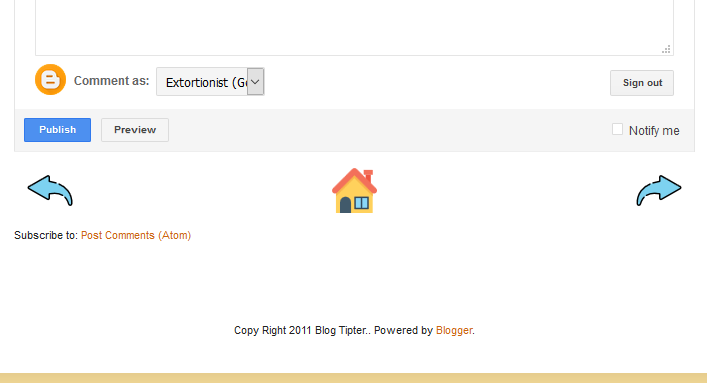
If You Find Any Kind Of Difficulty Please Let Me Know. Thanks
---------
---------
How To Add Gif Images / Animations To Post On Blogger
[Updated: 21-6-2018]
Blogger supports still images, videos and text to post on your blog but when it comes to animation or GIF image you have to do slightly different procedure.
Big Issue ! not really you just have to know a little about HTML image tag i.e .
<img src="image_url" />It's a piece of cake to add gif image to you post. Let's begin.
STEP #1: You have to upload your GIFs to any image hosting sites like Photobucket. Go to any images hosting website, create account upload your GIF file.
You may Google them using "images hosting sites" keywords, tons of link will appear.
STEP#2: After you have uploaded the GIF. you'll get link for you GIF file. Every GIF has a specific link. Copy the link and past the link in following HTML code and then paste this simple HTML tag in your post body .
for example the link to you GIF file is https://mywebsite/my.gif then you will do the following
< img src = "https://mywebsite/my.gif" alt "my_gif" />
Now lets do an example.
GIF link : https://i.gifer.com/UGQn.gif
Code : < img src = "Gif_link" alt "my_gif" />
Lets Merge : < img src = "https://i.gifer.com/UGQn.gif" alt "my_gif" />
Results :
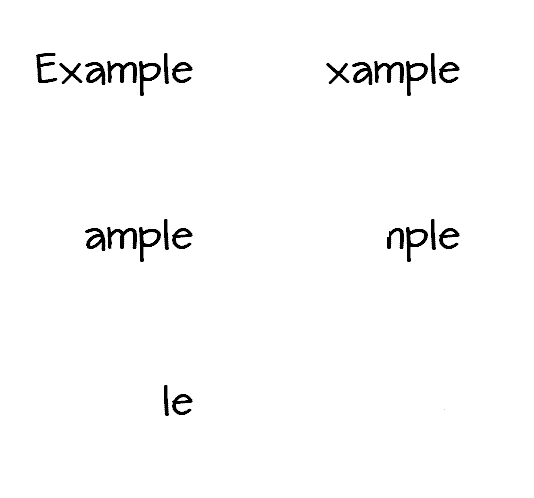
More Examples:




NOTE: you have to select interpret typed HTML otherwise HTML tags will be ignored
Please let me know if you find any kinda difficulty posting It
Using Special Characters In Facebook Status
Facebook is fun, isn't it? I would go for yes. Well now facebook is now supporting special characters. Using special character is kinda trick. You can either use them by copying and and pasting or you can simply hold you ALT key + a number key to use them. Here's an example.
Eg. ALT+3 = ♥.
But make sure that you're using your numpad but not those numbers keys above alphabetic characters.
Here is the complete list of special characters.
Alt + 1 ☺
Alt + 2 ☻
Alt + 3 ♥
Alt + 4 ♦
Alt + 5 ♣
Alt + 6 ♠
Alt + 7 •
Alt + 8 ◘
Alt + 9 ○
Alt + 10 ◙
Alt + 11 ♂
Alt + 12 ♀
Alt + 13 ♪
Alt + 14 ♫
Alt + 15 ☼
Alt + 16 ►
Alt + 17 ◄
Alt + 18 ↕
Alt + 19 ‼
Alt + 20 ¶
Alt + 21 §
Alt + 22 ▬
Alt + 23 ↨
Alt + 24 ↑
Alt + 25 ↓
Alt + 26 →
Alt + 27 ←
Alt + 28 ∟
Alt + 29 ↔
Alt + 30 ▲
Alt + 31 ▼
Eg. ALT+3 = ♥.
But make sure that you're using your numpad but not those numbers keys above alphabetic characters.
Here is the complete list of special characters.
Alt + 1 ☺
Alt + 2 ☻
Alt + 3 ♥
Alt + 4 ♦
Alt + 5 ♣
Alt + 6 ♠
Alt + 7 •
Alt + 8 ◘
Alt + 9 ○
Alt + 10 ◙
Alt + 11 ♂
Alt + 12 ♀
Alt + 13 ♪
Alt + 14 ♫
Alt + 15 ☼
Alt + 16 ►
Alt + 17 ◄
Alt + 18 ↕
Alt + 19 ‼
Alt + 20 ¶
Alt + 21 §
Alt + 22 ▬
Alt + 23 ↨
Alt + 24 ↑
Alt + 25 ↓
Alt + 26 →
Alt + 27 ←
Alt + 28 ∟
Alt + 29 ↔
Alt + 30 ▲
Alt + 31 ▼


Subscribe to:
Posts (Atom)